Dedicated to ChromeOS
Welcome to Chrome Computing
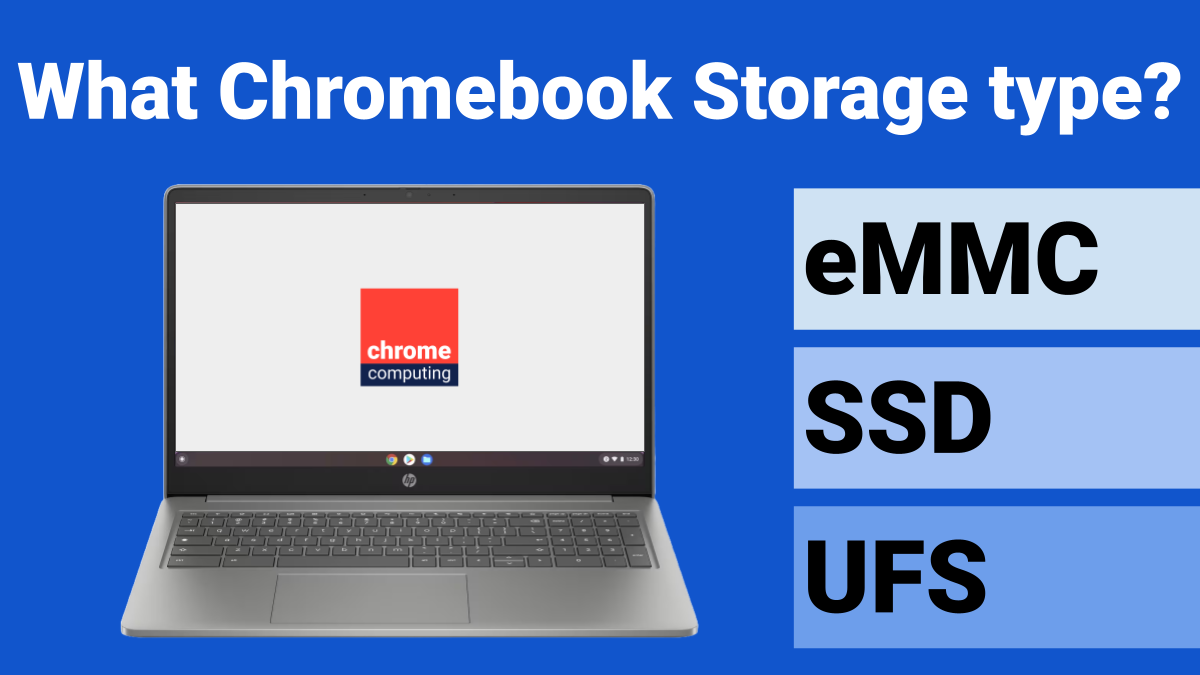
eMMC, SSD or UFS. What sort of storage should you be looking for when buying a new Chromebook?
The news that Google is ending Steam support from 01 January 2026, is it such a big deal?


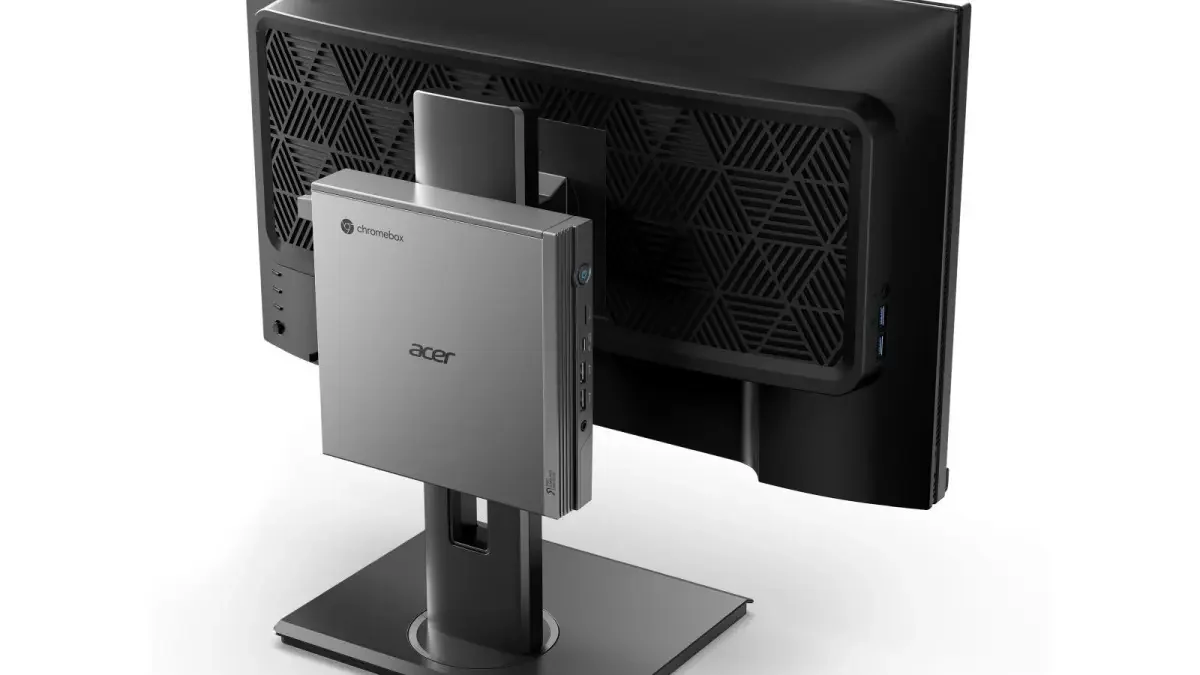
Android


Linux

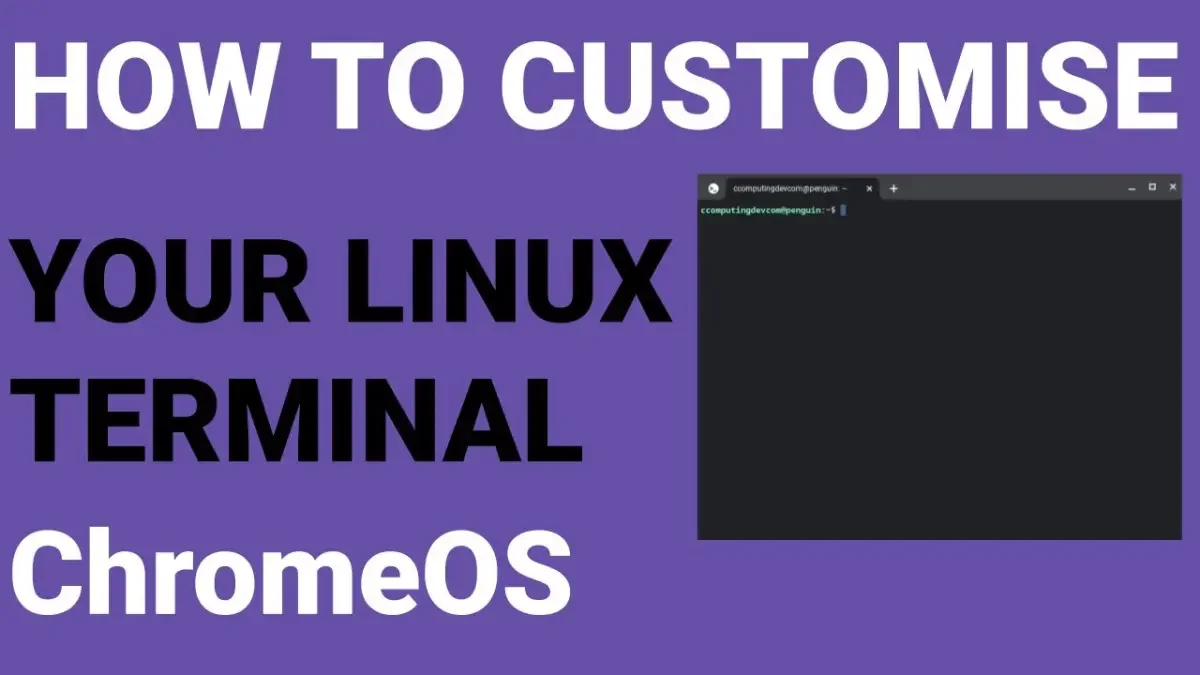
If you use your Linux terminal in ChromeOS a lot, you may want to customise it to make it more pleasing to view.
How To



Videos

Find out more about Chromebook notifications
This video will show you to manage notifications on your Chromebook.
This can be really handy if you receive a lot of notifications, as it will help you manage your workload.
VIDEO TRANSCRIPT
00:00:07.519 we'll look at notifications on your
00:00:10.139 Chromebook now when I'm referring to
00:00:11.639 Notifications I'm talking about
00:00:13.380 notifications from apps and also
00:00:16.020 notifications from the Chrome browser
00:00:18.779 and this is when you would go to
00:00:20.580 websites now I don't know about you but
00:00:22.380 I'd say the last year or so a lot more
00:00:25.619 websites now come up with a pop-up box
00:00:27.900 saying they want to send you
00:00:28.980 notifications and if you're anything
00:00:30.840 like me if you're busy sometimes you
00:00:32.820 don't read what's coming up and you
00:00:34.800 might say yes to something and then
00:00:36.899 later regret it because this website
00:00:38.880 keeps on sending notifications which
00:00:41.340 really frustrates you you quite a few
00:00:43.739 years ago the only sort of websites that
00:00:45.480 did that were things like Facebook and
00:00:47.940 the more well recognized type of
00:00:50.280 websites Twitter that sort of thing but
00:00:52.920 now you get it on loads of websites and
00:00:55.559 if you click yes to those notifications
00:00:58.079 you are then just bombard with
00:01:00.180 notifications so we'll also look at that
00:01:02.699 as well and now you can customize that
00:01:04.920 but first of all we'll have a quick look
00:01:07.380 at the apps so I'll just quickly show
00:01:10.260 you one way what you can do to stop any
00:01:13.260 notifications is just put Do Not Disturb
00:01:16.320 here
00:01:17.280 and that will stop the notifications and
00:01:20.340 then when you take that off that will
00:01:22.560 then show the notifications again but if
00:01:25.259 we go into settings here
00:01:27.420 we can then look into more detail on how
00:01:30.600 it works so from your settings down here
00:01:33.600 you want to go into apps like that and
00:01:37.320 then from here you will see
00:01:39.380 notifications so click on there
00:01:42.119 obviously the type of apps your lab
00:01:44.100 would always dependent on what you've
00:01:45.420 got installed on your Chromebook now
00:01:47.700 here you can first of all look at this
00:01:49.619 app badging show dot on app icon for app
00:01:52.979 alert stats on
00:01:54.780 now all that simply means is if you've
00:01:57.479 got a notification for a certain from a
00:02:00.420 certain app and say if it's safe from
00:02:02.579 YouTube here you should see a DOT
00:02:04.860 underneath it to show that you've got a
00:02:06.360 notification so that's all that is so
00:02:08.758 you can either add that on or off now
00:02:11.220 this one here do not disturb when turned
00:02:13.920 on all notifications will be silenced
00:02:16.020 that does exactly the same as what this
00:02:19.200 one does here so if you turn that on
00:02:21.360 there
00:02:22.680 you'll see that it's also on here so
00:02:25.500 that's all that does here now the thing
00:02:27.720 to bear in mind here is this do not
00:02:29.580 disturbs overrides any of the settings
00:02:32.220 here so if you've got it on here to have
00:02:36.239 notifications if you click on do not
00:02:38.400 disturb it will override it and it will
00:02:40.319 not be able to give you any
00:02:41.459 notifications so from here you will be
00:02:44.280 able to see that most of these apps do
00:02:47.879 not have permission to send
00:02:49.620 notifications I don't think I've
00:02:51.900 necessarily set that I don't think so
00:02:54.200 but it's a good thing is to definitely
00:02:56.519 go through and check for example I've
00:02:58.560 got clip Champ here which I am trying to
00:03:00.480 use a lot more I'm trying to move away
00:03:02.519 from Microsoft computer entirely to do
00:03:04.920 video editing but it's not an easy
00:03:06.780 process unfortunately so I may want
00:03:09.780 notifications from them so I could click
00:03:11.940 that on there because that could show me
00:03:13.800 notification for example if I'd done a
00:03:16.260 video and I was exporting that video you
00:03:19.260 could tell me when it's finished stuff
00:03:20.700 like that so you just need to go through
00:03:23.519 and decide what you'd like notifications
00:03:26.159 from so if there's apps which you just
00:03:28.980 really do not want any notifications
00:03:30.900 whatsoever just the best thing to do is
00:03:33.060 just simply to take it off here for
00:03:34.739 example like that there and then you'll
00:03:36.840 never get a notification from that app
00:03:39.300 and then up here like it says if you are
00:03:42.000 in a video call or you're doing a video
00:03:44.640 like I am now although I've got it
00:03:46.560 turned on myself you can just simply
00:03:48.599 click that but the quickest route to do
00:03:50.760 that is just from there do not disturb
00:03:53.159 just try and remember to turn it back
00:03:54.900 off again afterwards okay so that's how
00:03:57.659 you deal with notifications when it
00:03:59.879 comes to apps now we will look at
00:04:02.099 notifications from
00:04:03.900 browsers from the browser which is
00:04:05.819 essentially websites and these ones can
00:04:07.860 get quite frustrating because it looks
00:04:09.780 like most web developers now blog owners
00:04:13.680 debut they've obviously realized they
00:04:15.840 couldn't give you this information when
00:04:17.880 you log on to their
00:04:19.519 enter their website and I find it
00:04:22.320 utterly frustrating because most of them
00:04:24.419 you wouldn't want notifications from now
00:04:26.759 if you go to here at Chrome browser
00:04:28.800 settings does it mean you want to turn
00:04:31.080 it off because there might be something
00:04:32.340 that you do want it set up set send
00:04:34.740 notifications but it's entitled to you
00:04:37.020 what you do here
00:04:38.759 so here you can see there's default
00:04:40.560 Behavior so it's automatically follow
00:04:42.780 this setting when you visit them sites
00:04:44.940 usually send notifications to let you
00:04:46.500 know about breaking news or chat
00:04:48.419 messages which is fine so see here this
00:04:51.240 is essentially an education that's just
00:04:52.860 popped up but that's Chrome OS so
00:04:55.020 obviously I'd always want that and it's
00:04:56.820 just let me know there's an update and
00:04:58.979 that's because I've not had this
00:05:00.000 computer turned on for a couple of weeks
00:05:01.979 so that's no surprise there there's an
00:05:03.960 update okay so from here you can see
00:05:06.600 here sites can ask to send notifications
00:05:10.139 if you want the site when you log in
00:05:13.080 when you go to their websites if you
00:05:15.780 want them to continue asking you to send
00:05:17.699 your notifications then obviously leave
00:05:20.040 that as that now this one here the
00:05:22.919 second one is use quieter messaging
00:05:24.780 sites are blocked from interrupting you
00:05:27.180 when they ask to send notifications so
00:05:31.440 I'm not too sure what that does now it
00:05:35.699 would assume to me that if I was active
00:05:38.039 on my browser it would that would mean
00:05:40.740 that they're not allowed to pop up a
00:05:42.060 dialog box and ask me but I don't know
00:05:44.580 it obviously seems like this would be a
00:05:47.280 lot less intrusive than this option so
00:05:50.280 if you find it quite intrusive you want
00:05:52.139 something not as intrusive perhaps try
00:05:54.660 that option there now if you don't want
00:05:57.060 any notifications whatsoever but bear in
00:05:59.880 mind there are some websites where you
00:06:01.680 go to where you do want notifications
00:06:03.600 they will be blocked as well you can do
00:06:06.900 don't allow sites to send notifications
00:06:09.620 and that's this one here and then there
00:06:12.539 are bits and your notifications at all
00:06:14.520 I'm going to leave it on because I
00:06:16.979 generally spot it now and I always say
00:06:19.440 no if I don't want them to do so okay so
00:06:23.220 another good feature here is these
00:06:25.440 customized behaviors I'm going to turn
00:06:27.419 this brightness up a bit customized
00:06:29.460 behaviors so here you can see sites
00:06:32.759 listed below follow a custom some
00:06:34.500 setting instead of the default so this
00:06:36.720 is the default up here but you can
00:06:39.120 override that default with these so this
00:06:41.340 will still be the same for all other
00:06:42.720 websites but you can add separate rules
00:06:45.180 for other websites so here you can see
00:06:47.940 I've got allow to send notifications
00:06:50.280 I've got clip jump so that is allowed to
00:06:53.639 send notifications now if you click into
00:06:56.280 that this will then give you lots of the
00:06:59.160 different permissions that clip chump
00:07:00.960 has I'm not going to look at all of them
00:07:02.639 today we just look at notifications but
00:07:05.280 you can see there notification
00:07:06.840 notifications is allow and then if you
00:07:10.199 click back there and on the same one
00:07:12.660 clip jump if you clicked on these three
00:07:14.940 dots here so say for example you will
00:07:17.160 get notifications from a website and it
00:07:19.560 was driving you nuts the reason why it
00:07:22.199 will be showing down here allowed to
00:07:23.940 send notifications because you've
00:07:26.220 previously visited that website and
00:07:28.319 you've clicked allow notifications so if
00:07:30.660 you're getting that and it's starting to
00:07:31.800 drive you crazy just find the website
00:07:34.139 that you don't want the notifications
00:07:35.759 from anymore click on then dots there
00:07:38.720 and you can either block
00:07:42.180 edit or remove now obviously if you
00:07:46.680 click edits that just lets you change
00:07:48.840 the website address so that that's fine
00:07:51.180 but if you for example
00:07:54.360 if you want to remove it by all means
00:07:58.500 remove it and that will not you will no
00:08:01.560 longer get notifications however if you
00:08:04.740 do that and up here you've got sites can
00:08:07.440 ask to send notifications the next time
00:08:10.080 you visit that website it may ask you
00:08:12.660 whether they can send you notifications
00:08:15.259 so if it's a website that is really
00:08:18.479 frustrating you with notifications I
00:08:21.360 wouldn't delete I would simply press the
00:08:24.900 block
00:08:25.800 and that will block them and as you can
00:08:28.319 see there they're not allowed to send
00:08:30.360 notifications that's where that is now
00:08:32.399 under so I've got Spotify not allowed to
00:08:35.640 send me notifications and I've also got
00:08:38.279 the clip jump I will remove the more
00:08:40.620 change it so I'll just put allow
00:08:43.140 on that one and allow on that one but
00:08:46.440 that's the way you deal with the
00:08:48.240 notifications another option you have
00:08:50.399 you can
00:08:51.959 put in your own websites here so you
00:08:56.160 could I'm just going to remove them
00:08:58.260 because they just might be default so
00:09:00.660 I'll just remove them for now so if you
00:09:04.260 wanted to you could leave this as a loud
00:09:06.360 or you could if you wanted to be really
00:09:08.700 strict you could say don't allow but
00:09:11.940 then a certain website where you would
00:09:13.860 like it to allow you to have
00:09:15.540 notifications you could add them
00:09:18.180 yourself here so allow to send
00:09:21.180 notifications on here so you would want
00:09:24.300 to put in the full website address so
00:09:26.459 check to make sure it's https most
00:09:29.700 websites are now some might be HTTP if
00:09:33.420 it's HTTP you need to put HTTP and then
00:09:36.959 https and then colon and then backslash
00:09:41.640 backslash and then you could do
00:09:44.480 facebook.com like that
00:09:47.580 and then do add and that's allowed to
00:09:51.120 send notifications however I don't think
00:09:54.000 Facebook uses that web address that's
00:09:57.540 they've not used the www dot now some
00:10:01.080 websites don't use www dot others do so
00:10:06.180 it's best to check on that as well so on
00:10:08.399 the Facebook one it would be https
00:10:12.120 colon forward slash forward slash
00:10:15.920 www.facebook.com because believe it or
00:10:18.060 not in in the eyes of um how the
00:10:20.339 internet works they are seen as two
00:10:23.040 different websites although it's
00:10:24.540 obviously the same person who owns it so
00:10:26.519 it's best to check on that so you could
00:10:29.100 do that and it's exactly the same you
00:10:31.800 could do that on not send notifications
00:10:34.560 so again if there's a website where you
00:10:36.959 don't want them to send you
00:10:37.920 notifications you can add them manually
00:10:40.380 as well so you don't have to wait until
00:10:42.779 they show down here you can set it all
00:10:45.660 up how you like
00:10:48.240 and if you aren't sure about whether
00:10:50.339 it's www dot or not the best thing to do
00:10:54.720 is you could just put both of them and
00:10:56.820 that covers both so that's how you deal
00:10:59.399 with notifications on your Chromebook
00:11:01.320 They do change it's been quite a while
00:11:03.360 since I've done a video on notifications
00:11:05.760 and when I was having a quick look I was
00:11:07.740 like yes that's really changed so I hope
00:11:10.380 you like this video obviously I'll be
00:11:12.360 making more videos in the future about
00:11:14.459 Chrome OS the operating system Android
00:11:17.880 so if you liked it please subscribe like
00:11:21.540 and thanks for watching

Change Linux icons on your Chromebook.
When you install Linux programs on your Chromebook, you should hopefully have the correct icon for the program showing on your Chromebook.
However, if you just see the generic Linux icon for certain Linux programs you’ve installed, this can become frustrating.
In this video I will show you how to change the Linux Icon for the programs you’ve installed on your Chromebook. This makes it much easier to identify programs when searching for the one you want to use.
VIDEO TRANSCRIPT
00:00
hello in the video coming up i'll show you how you can change your linux icons from this to this so if you use linux on your chromebook or your chromebox one thing you might realize is some programs not all of them some programs do not use their own icons they use a generic icon a penguin
00:28
from linux and it's not that nice and it's not just about how it looks it can also make it pretty difficult to actually find different apps so i'm going to show you in this video how you can change that so you can change the icon so you can choose one that you prefer and it just different it
00:46
differentiates your linux program so you find them easy to find on your app launcher down here so i've installed linux i'll have a look at the moment i've only just installed it on this chrome box because i did a refresh i've tried this on my chromebook and it works
01:01
all okay so i'm going to do it from scratch on here to show you so first of all what you would need you would need to have linux installed if you don't have linux installed i've got a video will show you how to do that you'd also need to have a linux app store installed
01:16
put it in this way where i'm going to show you and again i've got a video to show you how to do that or if you know how to install apps using the terminal yourself that's fine you can do it that way so the reason why you need a linux app store is because i'm going to use
01:32
the linux app store to install a program so this is the linux app store here so if you don't have this have a look at my videos and there's a video how to install a linux app store and i'll try and remember to put a link in the description as well okay so first of all then what i would
01:47
suggest is don't skip through the video because you're gonna miss steps and there are steps that you need to follow so don't skip through the video and then not see what the steps are and then leave a comment saying how to do this when the video will explain everything you need to do so one
02:03
thing i will say before we get started is that it it's the strange thing and i couldn't really get my head around was that here for example when we create a new icon here for example say if we changed this was the penguin look icon here and we changed it and we changed the name
02:23
here just say to chrome 2 for example the chrome 2 the actual name changes straight away the icon is it's really intermittent on my chromebook when i did it on my asus chromebook once it changed straight away the next time it changed when i turned off the computer and turned it back on
02:41
but then when i did another one it didn't change until the next day so this is obviously cached and if you don't know what cache is what a cache is it it helps systems and websites perform much faster so instead of when you go to the app launcher for example instead of it
02:57
always looking up data it caches the icons were linked to certain programs and it's that cash update which i can't really get my head around so when you do this if it doesn't work straight away don't think oh it doesn't work it does work it may just take a restart of your chromebook for example
03:18
or wait until the next day and you'll see it work or it could work straight away that's what i mean i couldn't really get my head around it so let's get on to how it all works then so first of all what i'll do and you do need this program but this program is good because this program
03:32
does just use that generic penguin icon so you'll see the difference so go on to discover and we do need um a file x manager for linux so that's our files manager for chrome os but we need a files manager for linux and the one i'm going to install is nemo which is really good just type in nemo
03:55
and you'll see it here files so just install that this action will also remove the following package i mean i didn't have that on my chrome book i'm not sure what that is i'll just carry on that's fine so that's just downloading i'll quickly skip the video to get to where
04:14
we need to be okay so that's installed that took quite a few minutes compared to my a6 high chromebook it installed much quicker so it just showed the more powerful chromebooks with ssd but i assume my chromebox had ssd storage as well anyway we're going off track so as
04:29
you can see here we've we've now installed this and you can see that's the icon there okay but when if we go to linux you'll see it's that and it's this that's what we're going to be doing in this video we're going to be changing it so you don't have that generic penguin
04:47
icon there but we do need files as well so i didn't just download it so you could see that we actually need files as well so what we're going to do we're going to go into first we're not going to change the files one we're going to download another program as well so
05:04
you don't obviously need to download this program you need to download the files program but i'm just downloading this program because this is another program that doesn't use there you can see the icon but when it's actually installed it doesn't actually that was installed a
05:22
lot quicker um we just wait for to see what it's doing it doesn't actually use that icon there still looking let's have a look if it's in linux yeah there we go so there that's there so the handbrake is there and the files is the one what we need to use but both of them you can change both
05:41
of these but we're going to be changing handbrake today so first of all what you need to do i'm just going to i don't i think we can safely close that now i think that's all okay let's install let's look handbrake yep so that's the amperage program um okay so first of all what you need to do is go
06:02
to your chrome os file manager there so i'll put that there like that and then you also need the linux file manager which is this one and we put that one there so these are both the same the difference is this this is your chrome os files and these are your linux files
06:26
so first of all i've only just set this up so i make that will obviously be shared because it's linux files and that's all okay there so what we need to do and as i said bear with me make sure you follow it completely because you may miss steps so what we need to do here then if you go to file
06:44
system that takes you to the file system there so on here we need to go to linux files and we need to create a folder and you can call the folder whatever you like so i'm just going to call it dan's just my name dans docs for documents so i'll just call it dan's docs that's fine
07:05
and then what i need to do is as we saw that handbrake program is just using that so i want to get the icon for handbrake so i'll go on to google and just type in handbrake linux icon and hopefully it will come up go to images and this one looks like it's the one so click on there and that is okay
07:36
is there one no that's fine we use that one it's 250 by 250 which is fine that's exactly roughly what you want it to be if you if you couldn't get an image that was 250 by 250 that's fine because you can download it and change the dimensions so we'll use that so we'll just save images
07:56
and we'll just call it handbrake okay and then that's in our downloads folder so you could download you'll see it there like i said if the image was too big that's fine but if it was you downloaded a real big image that you wanted to use just change the dimensions here to around 250 and 250 but that
08:18
one's fine we don't need to do that one okay so we've got the actual logo that i mean the icon that we want to use so we need to copy cut doesn't really matter but i'll copy that into linux files and i'm going to put it inside the dan's docs folder that i created so just paste it in there like that
08:40
okay and then from there what we need to do is to go back to uh a linux file manager just go into file system and then we're looking for user and then share and then in here go into applications so it's used user which is usr share and then applications i assume that's
09:13
what it means usr user i don't know what else it would be go into applications and here you'll see these are the actual linux programs that are on your chromebook or can be used on your chromebook and what's quite frustrating is you can actually see handbrake there
09:32
and it uses the icon correctly there which is really bizarre so it just doesn't for some reason on here put it on here so that's what we're going to be doing creating that icon to do that so what you need to do is if you just right click on that and do copy now you can't essentially what we're
09:54
going to be doing we're going we're going to be using this inside chrome os file explorer but you can't copy that like so and then paste there like that you can but it won't work it won't give you the data you need if you do it like that you'll see it's got zero bytes there
10:14
it's just not what we want it to do so you delete that that's fine you need to copy it from here and then you need to paste it in this location and go back one in this location here but do it from here so go to your file system we'll just go to home sorry and this location here dan
10:33
linux now that will be whatever you set up when you set up linux so usually it uses your gmail address by default so when you first initially set up linux it will use your gmail address or you can change it i've just changed to dan linux and that's important because
10:50
you'll be using this in this video okay so this location here now is where we are there so we just want to paste and we're pasting that file that we created just paste there and then you can see it's showing on this side but it's actually got bytes so that's why you can't just copy it like
11:11
that you have to do it that way okay then what we need to do we need to open this up once it's open you'll see here this is essentially a shortcut icon here this is what we're editing now so handbrake we're going to leave it as handbrake exec here means executes so that's the
11:31
program that's executed so you don't want to change that what that means is when you double click on the icon that's the program that loads up you don't want to change that so that's fine everything else you can leave as it is it's this here that we want to change icon equals fr handbrake.ghb
11:48
so for some reason it's not bringing it over so what we're going to do here if i remember correctly the address which is fine yeah so just get rid of that and we're trying to find the address and the the location we're finding is this location here okay where this dan's docs is here
12:12
so we find in this location here so to find that location go to icon so it's backward slash and then home and then backwards slash and then it's my actual linux name so my linux name is dan linux so there or is it dan's linux let's just open up a terminal i forgot yeah so it's dan linux there so it's
12:43
that there that's what we put in here so home then dan linux or whatever yours would be another forward slash there so that's put that's put us to essentially here that's where that's taken us to so far so now we need to go into dan's docks so just put in dans docks or whatever you call yours you can
13:07
call it whatever you want that folder and forward slash and then we need to tell it the icon here so here go handbrake dot png and then save okay and then close that and then if we go back to linux files it's this is what we've just edited if you open it up opens up the two i'll just close them
13:37
open it up like i'll just show you that actually when you use the text editor it keeps the old ones that you've used as well which is fine but i tend to close them so i get a brand new fresh one from start so open that one up and we should see the changes we've made which is there icon home dan linux
13:56
dansdox handbrake.png okay so that's fine now what we need to do we need to now move that into a directory or a folder sorry in chrome os so it shows down here so there's handbrake there okay so what we'll do is go to here go to show hidden files so it's now showing you hidden files as
14:28
well just copy that file that we've just edited there so copy and then where we want to go in here is dot local share and then from inside here you want to create a folder called applications so just put it all lowercase applications go inside there and then paste that file that we edited
14:57
now that should in theory change the icon and this is where i said in theory because it doesn't necessarily change it straight away as you can see now i'm going to show you that we've changed that although the icon's not changed straight away because but don't get wrong in this
15:16
video we will try and get to a stage where we've got that icon changed it might just mean i need to restart my computer and then we will take it from there okay so i'm going to show you now that this this will change but it just takes a while to change the icon so i'll
15:31
change that name so you can see that name change so if we open this up just close these down this is the only thing if you work on the wrong ones so i'm just going to close them down open up a fresh one there i'm going to change this to h break like that okay and the actual icon is still there
15:53
save that close that go back in just to make sure it's done it h break there close that now hopefully if we go to the start menu there you can see that it has actually changed the name so it shows you that it does change it if we go to linux apps as well you can see it's changed the name
16:15
so it is registering what we're doing it's just not registering the fact that the icon has changed yet and as i said that's something to do with the cache i think i i assume it's something to do with a cache so what i'll do is i will restart my chromebook and we'll take it
16:32
from there and hopefully it's been updated so we can see that it's changed okay so here i am back so as i said it is a bit of a strange one to change it but i'll show you that it has changed so if we go to the chrome os start menu you can see that it's now the hp what we called it
16:50
but we've also got the icon as well so it's now using that handbrake icon if you're going to linux as well it's there as well so don't just stop this video right now because there's loads more i need to explain to you so you understand so it doesn't get you frustrated because
17:04
if you don't follow the steps correctly you may get frustrated if it doesn't work for you so there's still things i need to let you know about using this way of doing it but i just wanted to show you that it's worked and as as you can see has done and i'll show you the
17:19
steps that i had to do to get it to work but essentially what i would suggest is you could just be patient and just leave it and then hopefully the next day when you log in it's done what it needed to do now here you'll see the files one there i'm going to do exactly the same one with
17:38
that because that's that's where that's the chrome os that's the linux file manager which is really important so it's really important to have linux file manager of huge linux quite a lot but as you can see it uses that penguin there i'm going to change that so it changes
17:54
to a different one as well so these are the things i need to let you know what i did just then to try and get it to work is i turned off my chromebox and logged back in didn't change it i did um an update that may have changed it but what i when i did the update at first
18:19
and tried it it didn't work so what i did is i then signed out logged in with another user which you may not have if you only have one user and then when logged back out went back in it had changed but it may have been the update that did it and then up and then close it down so i'll show you what
18:35
i mean by that so after you've followed all of them steps what you could do is go to here and just type in um sudo at get apt gets update so that's s-u-d-o space apt hyphen g-e-t space update and then hit return this is what i did and then i did sudo sudo space apt hyphen get get space upgrade
19:14
so i did that as well and then i exited out there closed that down and that's when i went to switch to another user so that may have done it as well it may have speeded up the process but like i said it may not work straight away okay so one thing i need to show you is that now you've
19:31
installed this here it's just a shortcut it's not no longer seen as the program and what i mean by that is if you right click on it it gives you the options to pin to shelf but it doesn't give you the option to uninstall so if you go to here for example if you right clicks on the files one you get
19:50
the option to uninstall so it removes the option to uninstall so even if you remove handbrake by using a different method that may still stay there so if it does what you need to do is go to here and i would do this before you want to on if you want to uninstall
20:07
handbrake because if you do it this way first then you get the original handbrake back which you can then uninstall from the app launcher menu so go into here go into linux files show hidden files go into dot local go into share go into applications and just simply
20:26
delete that and once you've deleted that what would happen is handbrake would still show but it would be the original penguin icon and it would be the original handbrake name and then you could right click and uninstall so that's the only thing you need to remember
20:41
so if you use linux quite a lot it's really useful as at the moment i've only just started using my chromebox again for linux i've been using my asus chromebook and it's a bit that's the one thing if you're using two different um computers because the linux install will be separate on each one i'm
21:01
not too sure if i like that process so i might actually stop using my chromebook and just use my chromebox in future for linux so i haven't got different files everywhere it's not the same as if you use android apps which just sync as such so um if you are using linux a lot and you've
21:20
got lots of programs like a lot of them now do come over with the icon but it's good that the ones that you don't if you install quite a few if all you can see is loads of these penguin icons it can make it really hard to see so it is really good and like i said you don't
21:35
need you don't need to use that icon you can use any icon you like you can just go onto google find the icon download it like i said you want it to be about 250 pixel by 250 pixel and that's fine so i think i've showed you everything that you need to think about um in relation to the linux files um
21:56
whether you need to leave this here i i think you would because if the when it when it when the cache refreshes you can't find it it wouldn't be there so you would have to leave that folder in your linux files as that for whilst you're using it and essentially you
22:13
could use this for all of different um apps as well so if you wanted to for example under that files one where at the moment i've just got that ugly penguin files there what i'm going to do is i'm just going to go on to here and just put in file manager and just look for one that i think looks
22:33
nice essentially like that one for example and i'll just download that save image as i could just put straight into linux files dance docs and i'll just put that i'll just change that to linux file manager and then i can use that one at a later date to change the other ones so you like
22:58
this video if you did please like below and subscribe to the channel for future videos and thanks for watching [Music] you

Find out how to access the Downloads folder and Google Drive from Linux on your Chromebook.
When you first setup Linux on your Chromebook, you will not have access to your downloads folder or Google Drive.
Having access to your downloads folder and Google Drive when using Linux is really useful. This is because it will stop you duplicating the same files, and it makes using Linux a lot easier.
In this video you will find out how to access both your download files and Google Drive when using Linux.

The fantastic Google Pixelbook Go
The Pixelbook Go is the last pixelbook laptop that has been released as of 2025.
This is still the Chromebook that I use for personal use and I absolutely love it. Firstly, as you’d expect from Google, the build quality is excellent.
You’ll also be really surprised with the sound you get from the speakers considering how compact the Pixelbook Go laptop is. This is definitely a laptop you can use on the go, as it will easily slip into your bag when travelling.
The display is great, and the brightness is good for those sunny days, when you’re suffering with reflections on the display.
One of the best things I love about this laptop is the keyboard. If you do a lot of typing then you’ll be really happy with the Google Hush keys, and backlit display.
Thankfully, Google changed the Automatic Update Expiry date for many Chromebooks, and this means the Pixelbook Go will still be receiving updates until 2030.

How to easily backup your Chromebook Linux container.
If you use Linux on your Chromebook, then you should consider backing up your Linux container.
Generally speaking, ChromeOS is really stable, so it’s unlikely you’ll have a situation where your computer stops working. However, it’s always a good idea to backup your Linux Container if you use Linux a lot on your Chromebook.
You may have tried doing this in the past and come up against errors, when trying to backup to a USB stick.
In this video, I’ll show you how to backup your Linux container to a USB stick, and how to avoid common errors that you may come up against.
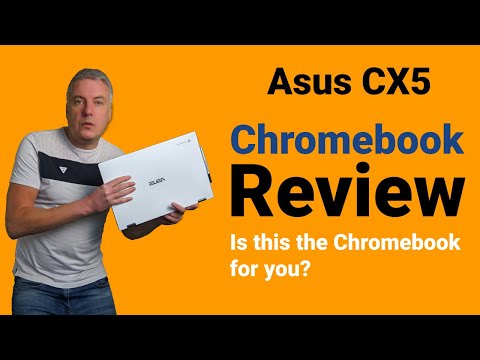
The Asus CX5 Chromebook is what I still use in 2025 to make my YouTube videos.
The Asus CX5 Chromebook is one of the last laptops I bought. I still use this Chromebook today when I’m making my YouTube videos.
It comes with 8GB of RAM and 256GB of storage, which means it’s ideal for people who want to use advanced Android and Linux Apps.
A few years ago 256GB of storage would have been considered too much for ChromeOS. However, having this amount of storage space allows you to allocate a lot of storage to your Linux container.
The display is fantastic and is one of the biggest laptop computers I’ve ever owned. This does mean it isn’t the type of laptop you would want to carry around with you, but it’s a great laptop to use at home.
The sound quality is fantastic and the display, which is IPS offers excellent visuals. There were a few issues with the sound when this Chromebook was originally released, but this has been dealt with following updates.
I can’t remember exactly, but the Asus CX5 was receiving its last OS update in 2027, but thanks to changes made by Google. The Asus CX5 will now receive OS updates until 2031.

Make the most of your Chromebook shelf by adding websites that you use regularly.
In this day and age we are all very busy, and you’d be surprised how much time you can save with this handy tip.
If you regularly visit the same websites on your Chromebook. Instead of opening the browser and typing in the web address. You can add the website as an icon to your desktop shelf.
This will make it much easier to visit websites that you regularly use when working on your Chromebook.

Why I loved the Acer 311 C722 Chromebook
When I bought the Acer 311 C722 Chromebook I was well aware that I was buying a budget laptop.
However, I was pleasantly surprised with the build quality, and the military grade body meant it could take a drop from a few feet without being damaged.
It’s fair to say the display was not the best as it was TFT, which is nowhere near as good as an IPS panel. That being said, it did mean it was much easier to read the display when directly exposed to the sun.
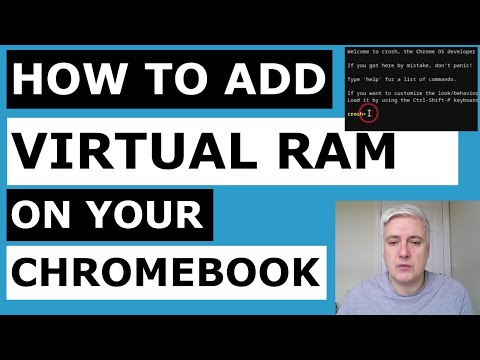
Find out how to add extra RAM to your Chromebook computer.
In the early days the Chromebook was known for having much less RAM than a traditional computer. This was mainly due to ChromeOS being a lightweight operating system that can perform perfectly well without having access to a lot of RAM.
Over the years at ChromeOS has developed you can do a lot more on your Chromebook. This includes using Android and Linux Apps, which are known for needing more RAM.
ChromeOS manages your virtual RAM for you, so you don’t really need to change anything. However, if you like tinkering around with your computer, you can manage the virtual RAM, and this video will show you how to do this.

Find out how to change the location of the shelf on your ChromeOS computer.
If you want to change where your Chromebook shelf is located on your Chromebook. This video will quickly show you how to do this.
Being able to change your Chromebook shelf location may be useful depending on how you use your computer.
It’s also a great way to customise your Chromebook to your liking.

This video will show you how to change the size and colour of your Chromebook mouse cursor.
The ability to change the size and colour of your Chromebook mouse cursor is really useful.
Perhaps you just want to customise your computer a little, if this is the case, this is one of the ways you can do it.
It’s also really useful if you find it difficult to locate your mouse cursor when using your Chromebook.

Find out how to easily edit images on your Chromebook.
If you want to do some basic editing of images on your Chromebook, this video is the one to watch.
You’ll find out how to use the default image editor that is available on your Chromebook.

Specifications to look for when buying a none budget Chromebook in 2020.
In this video I discuss the specs to look for when buying a none budget Chromebook in 2020.
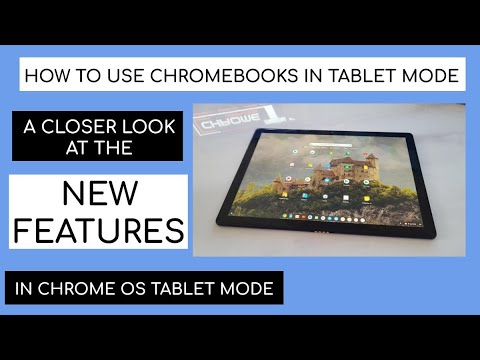
Find out how to use your Chromebook in tablet mode.
When the Chromebook was originally launched you did not have the luxury of a tablet mode. You simply had a desktop experience.
As ChromeOS matured into a more flexible operating system, we started to see Chromebook 2-in-1 laptops. These laptops allow you to use a device in either desktop mode or tablet mode.
In this video you will find useful ways on how to use your Chromebook computer in tablet mode.
A look at how much RAM you need for an Android phone.
Find out how much RAM you should be considering when buying a new Android phone.

Review of the Lenovo C340 Chromebook
The Lenovo C340 Chromebook was a great example of a budget laptop that provided excellent value for money.
Although you’ll find other Chromebooks that offer more today. It’s good to take a look at the past to see what your money got you back in 2020.
What I liked most was the build quality and it also come with an IPS panel, which is one of the best display type you should be looking for when buying a Chromebook.